How To Create a DJ Account using SonicPanel ?

sonicpanel radio

DJ accounts can be managed/created from the client-side SonicPanel only. Users can log in to the SonicPanel by using port 2080.

Advantage:

  • DJs can see/change their DJ connection password.
  • DJs can see/change their profile pictures, profile pictures are showing up on players when a DJ is streaming.
  • DJs can see if the radio or AutoDJ is online/offline.
  • DJs can see the HTML5 player on the main page with the album art and they can listen to the radio.
  • DJs can see song history.
  • If the DJ has permissions, they can control the number of on-air features like jingles, voice pro, start/stop radio or autoDJ.
  • Can manage the radio or AutoDJ if have permissions as a radio owner.
  • Every DJ can be given custom permissions.

Steps:

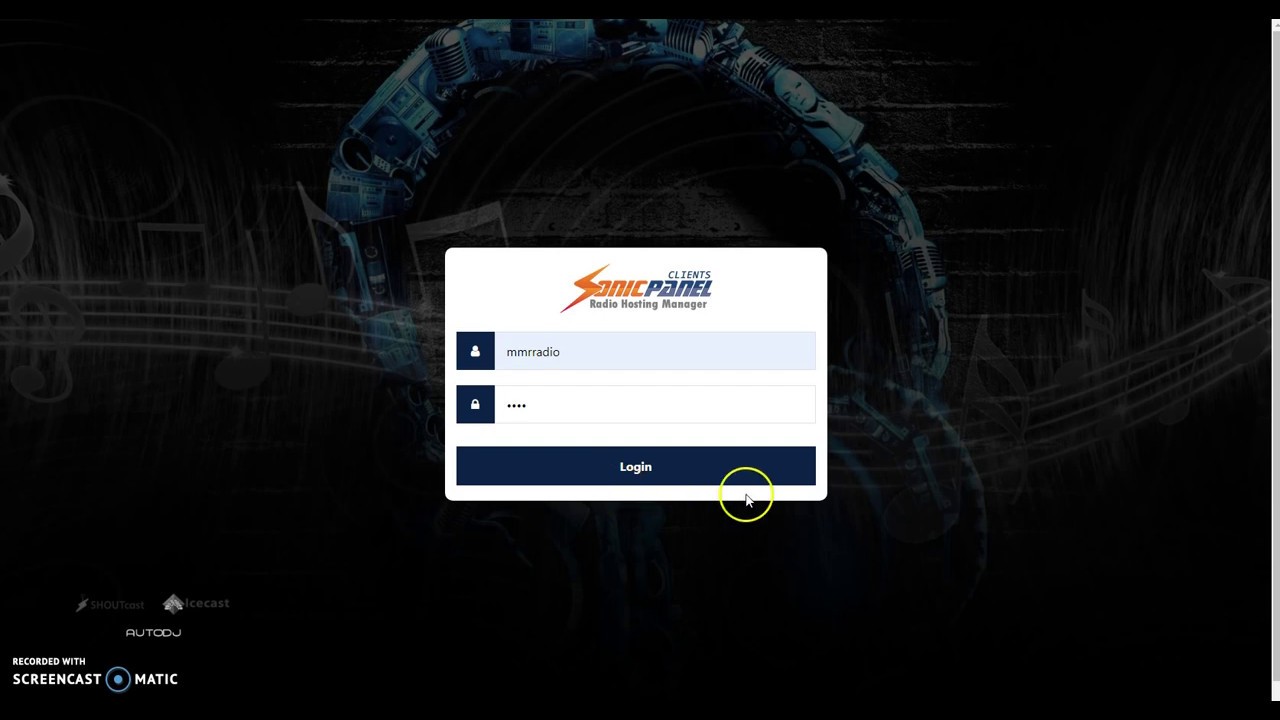
  1. Login to your SonicPanel account as a User.
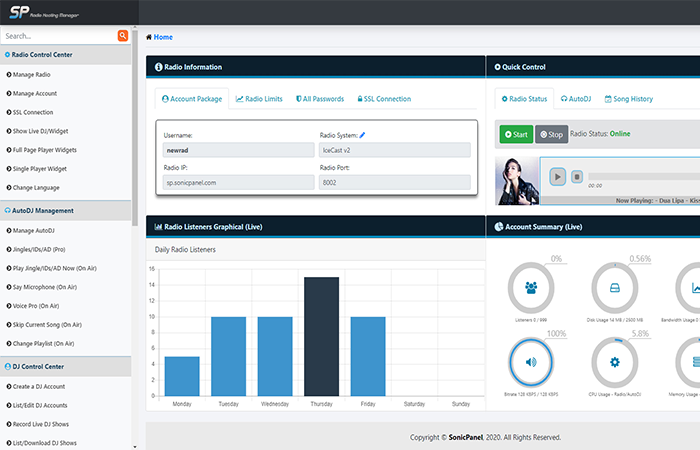
  2. From the left menu under the DJ Control Center, Use Create a DJ Account link.
  3. Enter a username and password, choose permissions if needed.

Note:

  • DJs have to choose SHOUTcast v1 protocol or SHOUTcast server option on their stream program always.
  • Be careful, while setting the permission on the DJ account.

ALSO READ: How To Stream As a DJ on SonicPanel? 

That’s It!
How To Stream As a DJ on SonicPanel?

sonicpanel hornhost

To stream as a DJ in SonicPanel, please follow the below-mentioned steps:

Requirement:

Download and install any stream/broadcast software program. For eg: VirtualDJ, Sam, AltaCast, Butt Encoder, RadioBOSS, Winamp DSP etc.

Download Radio Broadcaster and Music Player

Steps:

1. Assuming you have one. Provide the following information on your broadcast/stream program, in the encoder or radio settings:

Radio Option: Choose Shoutcast v1 or Shoutcast on your DJ stream program, even if the radio is icecast or scv2.
Password:
DJ Port:

2. Later provide other configure such as bitrate, quality, encoder options according to your needs and radio.

3. Start to stream now.

Note:

To connect and stream as a DJ, the AutoDJ of the radio must be online.
DJs have to choose shoutcast v1 protocol or shoutcast server option on their stream program always!

Also Read: How to create a radio on SonicPanel?


How to create a radio on SonicPanel?

sonicpanel hornhost

In order to create a radio on SonicPanel, please follow the below-mentioned steps:

Step 1: Log in to your SonicPanel using the username and password provided.

Step 2: You will be redirected to the home page.

Step 3: On the left scroll menu on your home page, select “Manage AutoDJ” in AutoDJ Management.

Step 4: In that “Manage AutoDJ page click “Playlists”. You will be redirected to the playlist page where you see the already created playlists. There is an option for creating a new playlist also

Step 5:  To create a new playlist, first, “Enter a name” for the new playlist and click the “Create a New Playlist” button.

Step 6: For uploading mp3 files, click on the “Upload MP3 files button”.

Step 7: A new page will be open where you can upload mp3 files from your computer by clicking anywhere on the page OR there is an option for drag the mp3 files from your computer and drop it on the page.

Step 8: For making your playlist active Click on “AutoDJ”

Step 9: Select the playlist on the “Active Playlist” dropdown to make it active.

Step 10: Click on the “Save Changes” button.

Step 11: Now manage your radio by just clicking the play button available under “Quick Control” panel.

Important:
Your “Radio Status” and “AutoDJ status” should be online to stream your radio.

That’s it!!