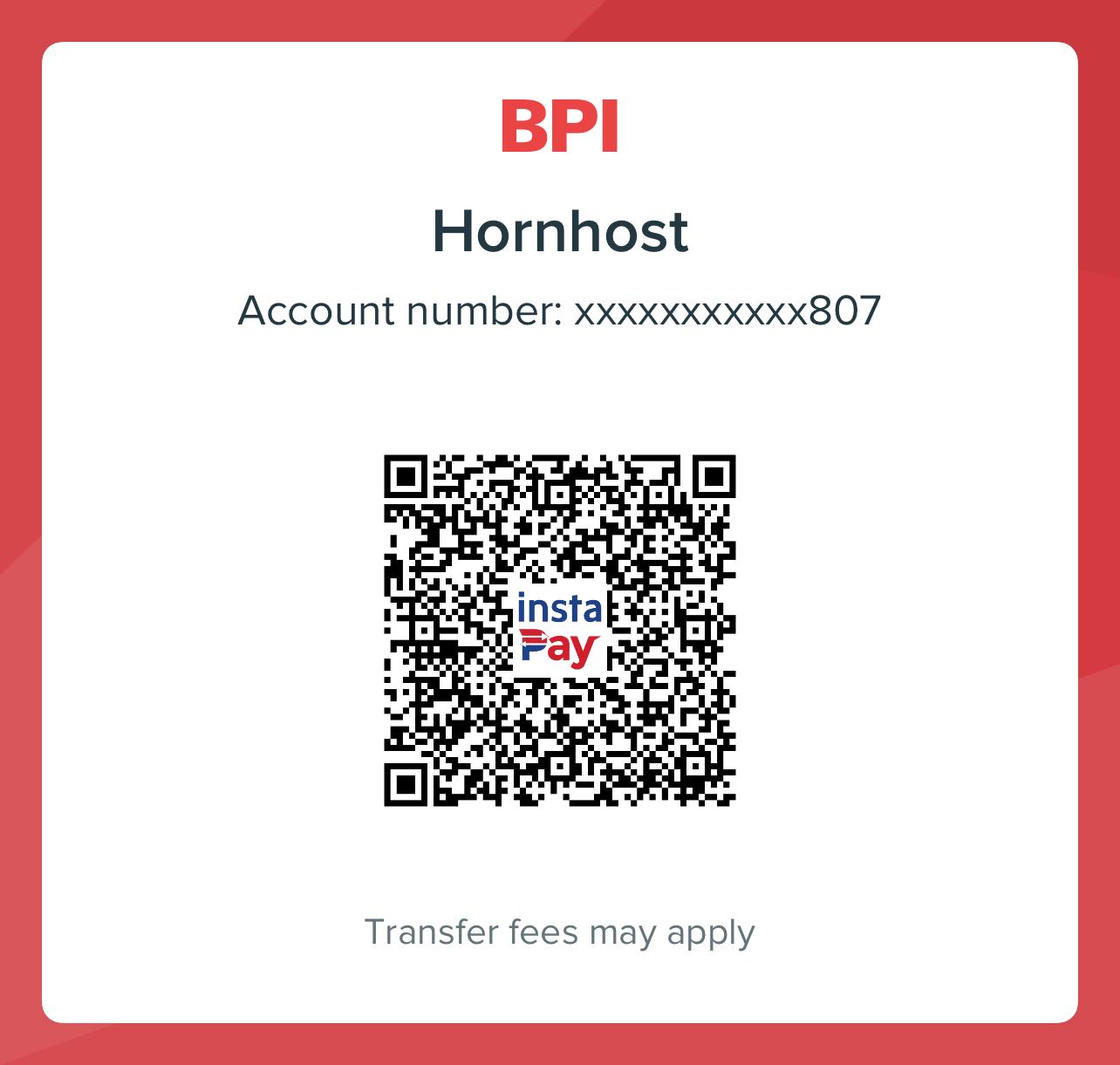
Payments: Bank Account Transfer

Bank Name: Bank of the Philippine Islands
Account Name: Hornhost
Account #: 8706 4528 07
Swift Code: BOPIPHMMXXX

You may scan the QR CODE to pay and put the invoice number in the Description of the transfer as reference number. And we will get back to you as early as we can.


Bank Name:  BDO UNIBANK
Account Name: Hornhost
Account #: 00211-060-2216
Swift Code: BNORPHMMXXX

You may scan the QR CODE to pay and put the invoice number in the Description of the transfer as reference number. And we will get back to you as early as we can.


Note: Swift Code is only needed for international bank transfer

For Manual PAYPAL Payment: You can send it to: lfavhosting@gmail.com and put the invoice number on the description.

For other concerns, you may contact us on this forrm: https://hornhost.com/contact-us/

For Investment, you may fill-up this form and read the terms and conditions:
https://favhosting.com/investment-information-sheet/

For affiliation and to earn income your may visit this link below:
https://favhosting.com/affiliate-with-us/

PayPal vs. Stripe: Why Stripe Wins for Online Payments

PayPal vs. Stripe: Which payment processor is better for your business? Discover why Stripe wins with lower fees, better exchange rates, faster payouts, and superior customization options

In the world of online payment processing, two names dominate the landscape: PayPal and Stripe. Both platforms offer secure, reliable ways for businesses to accept payments, but when it comes to flexibility, pricing, and developer-friendly features, Stripe stands out as the superior choice. Let’s break down the differences and why Stripe takes the lead.

1. Pricing and Transaction Fees

PayPal charges a standard fee of 2.9% + $0.30 per transaction for online payments. However, additional fees apply for international transactions, currency conversions, and withdrawal processes. Stripe, on the other hand, offers the same 2.9% + $0.30 fee structure but with more transparent pricing and fewer hidden charges.

Winner: Stripe – With a more transparent fee structure and fewer extra costs, Stripe edges out PayPal.

2. Ease of Use and Customization

PayPal is a great option for small businesses looking for a plug-and-play solution. However, it lacks customization options, making it harder for businesses to create a seamless checkout experience.

Stripe is designed with developers in mind, offering extensive APIs that allow businesses to customize payment flows, integrate seamlessly with their platforms, and automate billing.

Winner: Stripe – More flexibility and customization options make Stripe a better choice for growing businesses.

3. Payment Processing Speed

PayPal’s fund availability can take several business days, with potential delays for new accounts. Stripe transfers funds directly to a business’s bank account within two days in most cases.

Winner: Stripe – Faster payouts make it a more attractive option for businesses needing quick access to their revenue.

4. International Support and Multi-Currency Transactions

While PayPal is widely accepted internationally, it charges extra fees for currency conversion and cross-border transactions. Additionally, PayPal’s exchange rates are often lower than market rates, leading to additional losses for businesses handling international transactions. Stripe supports over 135 currencies and offers automatic currency conversion without excessive charges.

Winner: Stripe – More international-friendly with lower conversion costs and better exchange rates.

5. Security and Fraud Protection

Both PayPal and Stripe offer robust security features, including encryption, fraud detection, and chargeback protection. However, Stripe’s advanced fraud prevention tool, Stripe Radar, uses machine learning to detect and prevent fraud more effectively.

Winner: Stripe – Advanced fraud detection gives it an edge.

6. Customer Support

PayPal has a reputation for slow customer support responses, with many users reporting frustration over disputes and account limitations. Stripe offers 24/7 customer support via chat, phone, and email, ensuring businesses get timely assistance.

Winner: Stripe – Faster, more reliable customer service.

Final Verdict: Why Stripe Wins

While PayPal remains a convenient choice for individuals and small businesses, Stripe is the better long-term solution for businesses looking to scale. Its transparent pricing, superior customization options, faster payouts, and advanced fraud protection make it the go-to choice for modern e-commerce businesses.

If you’re serious about growing your online business and need a payment processor that offers flexibility, lower fees, better exchange rates, and developer-friendly integrations, Stripe is the clear winner.

How to find PayPal API Credentials username, password, and signature: A Step-by-Step Guide

Discovering your PayPal API username, password, and signature information is crucial for many apps to integrate. However, navigating through the PayPal admin interface to locate these details can be challenging. Here’s a comprehensive guide on how to obtain them effortlessly.

But first, why are these API credentials essential?

PayPal allows seamless communication between various applications, shopping carts, reporting systems, and websites through what is known as an API. This API performs various functions, such as checking your PayPal balance, retrieving transaction details, issuing refunds, and more.

To safeguard your PayPal account, API access must be restricted to those with proper authentication. The correct combination of API username, password, and signature is imperative to securely access your PayPal account information from third-party apps or websites.


Here’s a step-by-step process to acquire your API details:

Option 1: Under Tools, More Tools (for the latest PayPal interface)

  1. Log in to your PayPal account.
  2. Hover over the Tools menu in the top navigation and find More Tools. Click it.
  3. Scroll until you find a box with API credentials. Click on it.

4. Shortcut, to directly open the Tools page in your PayPal account.
5. On the API credentials page, select the last option for NVP/SOAP API integration.


6. If it’s your first time creating API credentials, complete the API Credential Request form.
7. Once created, locate the View API Signature option under NVP/SOAP API integration. Clicking on it will reveal your API username, password, and signature.

8. Remember, API credentials are sensitive information. Store them securely and never share them with unauthorized people. In case you suspect a compromise, immediately remove API signature and create a new one – following the steps above.

Option 2: Under Profile – Account Information – API Access

  1. Log in to your PayPal Premier or Business account.
  2. Click on the Profile subtab in the top navigation.
  3. Under Account Information, click the API Access link.
  4. Click the Get Started link under the Request API Credentials heading.
  5. In the left sidebar, click on My Selling Preferences and then the Update option for API access.
  6. Complete the API Credential Request form and submit.

7. Your API username, password, and signature will now be visible.
8. Copy these values into the requesting app or securely share them with your developer.

Still struggling to find the API details?

  1. Log in to your PayPal account.
  2. Click on Profile.
  3. Access the classic Profile version (on the left side, outside the My Selling Tools box).
  4. Under Account Information, click API Access.
  5. Choose Option 2 – Request API credentials and click on View API Signature.”